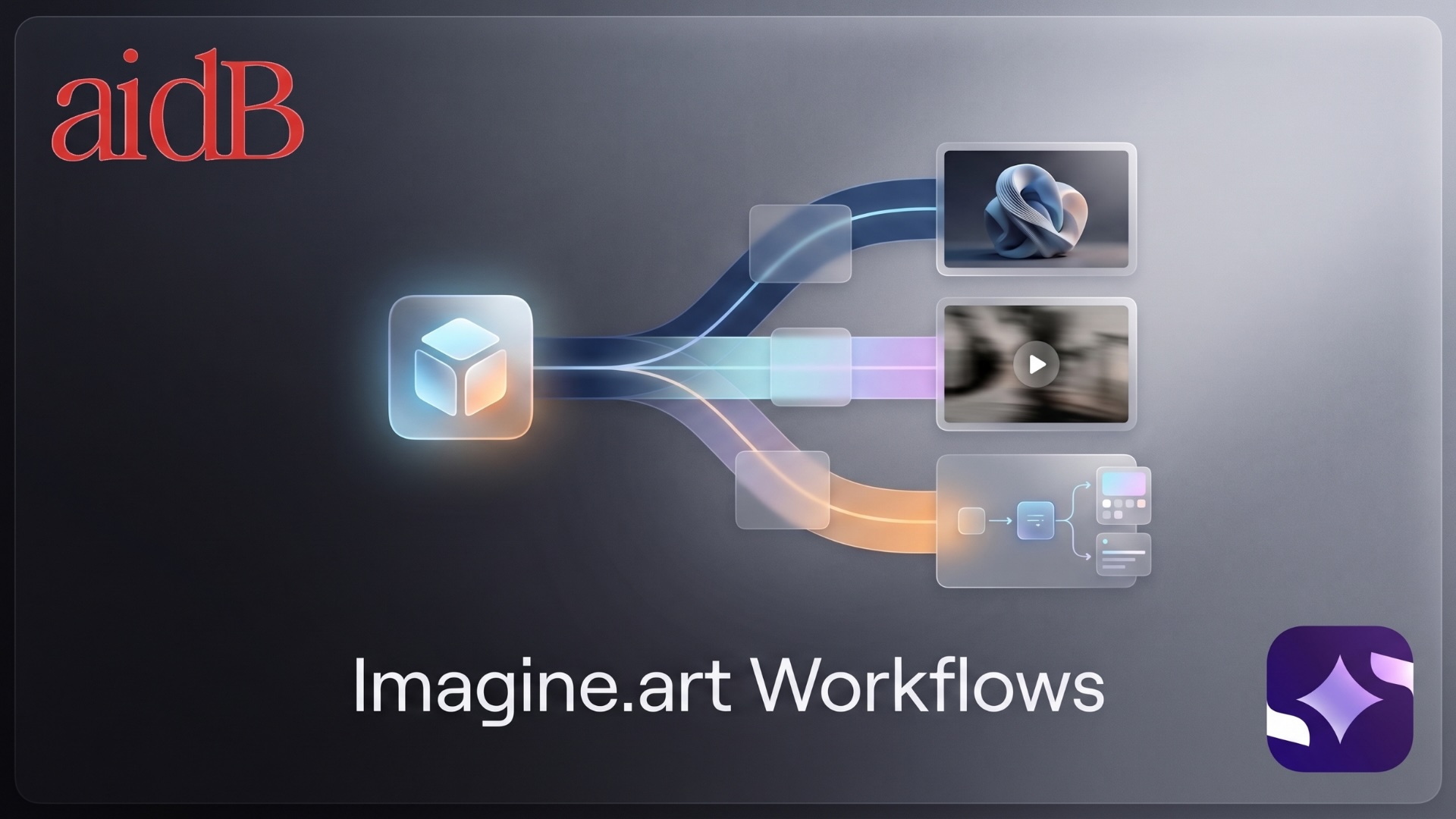
What if one AI workspace could create your product images, turn them into videos, automate variations—and package the whole workflow into a reusable app?
That’s the direction ImagineArt is taking - https://dub.sh/imagineart.
Its newer ImagineArt 2.0 image model focuses on commercial-quality photorealism and stronger prompt comprehension, while Workflows 2.0 adds variables, batch iterators, camera-angle controls, relighting, storyboards, audio nodes, and an App Builder.
The interesting part isn't another image generator.
It's turning AI creation into a repeatable production system.
ImagineArt is an AI creative platform for generating and editing images, videos, audio, and automated creative workflows.
Its image studio currently provides access to numerous models alongside ImagineArt's own models, including options from Flux, Seedream, Ideogram, Recraft, Google and others.
You can also use reference images for:
That makes ImagineArt particularly interesting for creators who need multiple assets that still feel like one campaign.
Tool: Imagine.art
For today's walkthrough, we'll create a mini advertising campaign for a fictional skincare brand called Luma Skin.
Open ImagineArt and create an account.
New accounts currently receive 100 free credits per day, so you can test basic generations before moving to a paid subscription. Credit usage varies by model and generation settings.
Go into Image mode.
Select your model.
For this example, start with ImagineArt 2.0, the platform's flagship proprietary image model aimed at photorealistic and commercial work.
Use a prompt like:
Luxury skincare product photography of a frosted glass serum bottle labeled “Luma Skin”, sitting on warm beige stone, soft golden morning light, delicate shadows, premium beauty campaign, minimalist composition, realistic glass reflections, editorial photography.
Generate your first set.
Don't spend too much time perfecting the first prompt.
We want a strong hero image first.
Once you have a product image you like, start treating it as your visual anchor.
ImagineArt's reference system can separately guide things such as character identity, style, color palette, objects, effects and camera perspective.
For example, keep the Luma Skin bottle but create another shot:
Same product, photographed beside water droplets and white orchids, soft diffused daylight, luxury skincare editorial campaign.
This is much more useful than asking AI to reinvent your product in every generation.
Now create campaign variety.
Try:
Hero: front-facing product shot
Detail: close-up of bottle texture
Lifestyle: product beside bathroom sink
Top-down: bottle surrounded by ingredients
Wide: minimal editorial scene with negative space
ImagineArt's newer workflow tools can also create multiple perspectives from a single subject using its Multiple Camera Angles node.
That can save a lot of repetitive prompt writing.
Suppose the composition is perfect, but the lighting feels flat.
Instead of regenerating the entire image, use the Relight workflow node.
You can adjust the position, intensity and color of the light source while preserving the underlying visual.
For our skincare campaign, try shifting from:
Flat daylight
to:
Warm side lighting with a soft golden highlight on the bottle.
Small change.
Very different mood.
Once you have your winning hero shot, open Video Studio and choose Image to Video.
Upload the image as the starting frame.
Then describe only the movement:
Slow cinematic camera push-in. Gentle movement in the reflected light. Small water droplets move naturally across the stone surface. Premium skincare commercial.
ImagineArt can animate a single starting frame, or—with supported models—use both a starting and ending frame to control where the shot finishes.
Beginner tip: Your image already defines the product and composition. Keep the video prompt focused primarily on motion.
If you're making a longer advertisement, don't generate random clips and hope they fit together.
Use a storyboard.
For example:
Scene 1: Serum bottle hero shot
Scene 2: Dropper releases serum
Scene 3: Lifestyle skincare scene
Scene 4: Product + tagline
Workflows 2.0 includes a Storyboard node that can create multi-frame visual sequences before you begin generating the final motion assets.
That turns AI video into something closer to actual pre-production.
Now suppose Luma Skin needs ads for three products:
You don't need to rebuild your entire workflow three times.
Workflows 2.0 introduces Variables, allowing recurring inputs—such as a product image or brand prompt—to be defined once and reused throughout the workflow.
Change the product variable.
Run the workflow again.
Same creative structure. New product.
That's where ImagineArt starts becoming much more interesting for businesses.
Once you've selected the images worth publishing, upscale those versions.
ImagineArt offers both Subtle and Creative upscaling modes, while its workflow tools offer additional resolution and enhancement controls.
Use Subtle when you want to preserve the original closely.
Use Creative when you're comfortable letting AI add additional detail.
As always:
Create first → upscale last.
This may be ImagineArt's most interesting feature.
App Builder lets you take a workflow you've created and turn it into a simplified app.
Your user sees the inputs.
ImagineArt runs the complicated workflow behind the scenes.
For example, you could build:
The user provides:
1. Product photo
2. Brand name
3. Campaign style
Your hidden workflow could then:
Generate hero image → create alternate angles → relight → upscale → output finished creative
The customer never needs to understand the nodes.
ImagineArt allows App Builder creators to publish apps and set an additional usage price.
According to its current documentation, creators can set a monetization tier of 0–30 credits above the underlying generation cost and earn credits when users run an app. Remix-enabled apps can also generate credits when people clone them.
But you don't have to monetize inside ImagineArt.
You could also use these workflows to sell:
The stronger offer isn't:
“I generate AI pictures.”
It's:
“Give me one product photo and I'll turn it into an entire visual campaign.”
Instead of testing every model randomly, choose the model based on the job.
Photorealistic campaign: ImagineArt 2.0
Text-heavy graphic: Ideogram
Product consistency: reference-friendly models
Fast experimentation: lower-cost/faster models
Final asset: premium model + upscale
ImagineArt currently exposes a large model catalog, so model selection can matter almost as much as prompting.
Build cheaply. Identify the winner. Spend credits on the final asset.
Pika - AI video creation with effects, creative agents, and automated visual workflows.
Napkin AI - Turns text into editable diagrams, infographics, flowcharts, and presentation visuals.
Higgsfield - AI video platform built around cinematic camera motion and creator-focused visual generation.
Magnific AI Suite - Generate and edit images, video, audio, and other creative assets in one visual workspace -
OpenArt - AI creative platform for images, characters, editing, and visual storytelling workflows.
Tubelab: A YouTube niche research and video ideation platform that tracks channels, outliers, and formats using large-scale data.
1of10: Use outlier video data to generate thumbnail, title, and idea options for your next upload.
Mootion: Transform ideas into captivating videos with AI-driven tools. Perfect for creators, educators, and marketers seeking engaging content.
BetterPic: Generate studio-style headshots from your selfies, with guided uploads, 150+ looks, and optional human edits.
Screencharm: Create polished Mac screen recordings with webcam, audio, auto-zoom, and 4K MP4 export.